Overview
When you enter the page, you can create a new knowledge base or view an existing one. at the top of the Explore Knowledge Base page, there are tags that show which knowledge base you are currently working with. The KB highlighted in black is the one you are currently viewing. The display shows all the items associated with that specific KB.
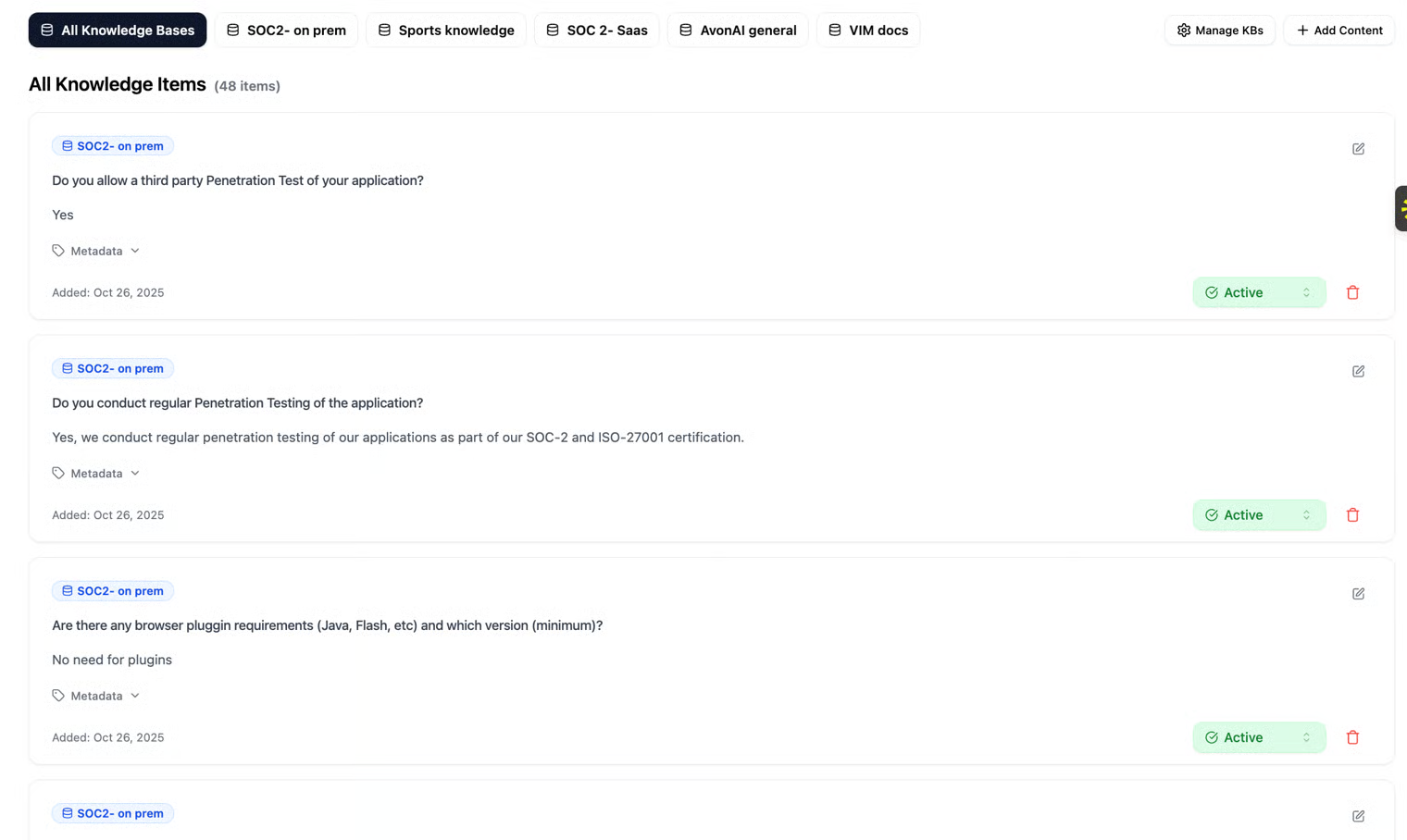
Next to each item, you will find three action buttons: Delete, Edit, and Active/Inactive.
- Edit – Allows you to modify the content of the item.
- Active/Inactive – Determines whether the item is available for your agent to use. When an item is Active, the agent can access and rely on it when generating responses. When an item is Inactive, the agent will not use it as part of its knowledge base.
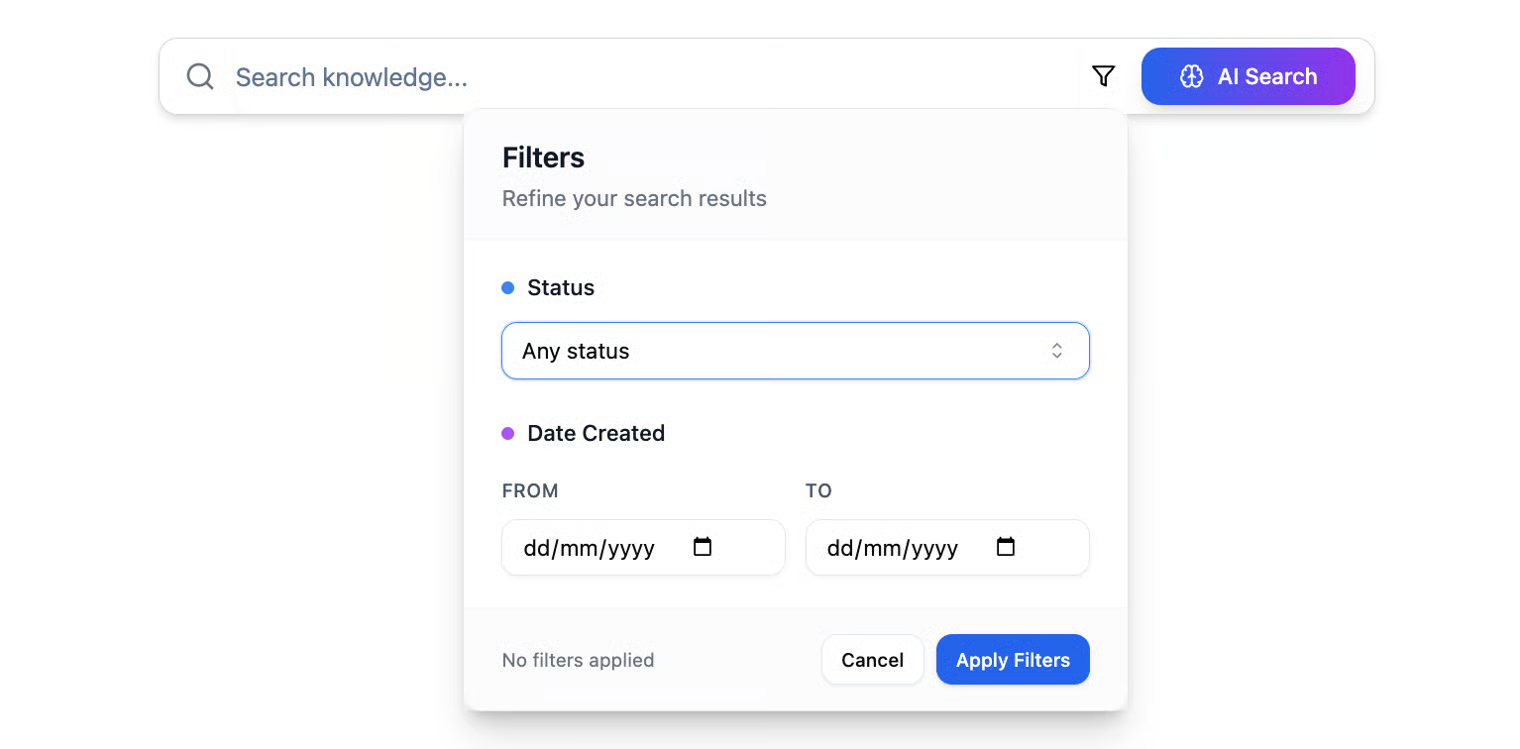
In the search bar at the top of the page, you can search all the information stored in your knowledge bases. You can filter by status and creation dates, and even use advanced AI-powered search to find the most relevant information for you.
Advanced Search
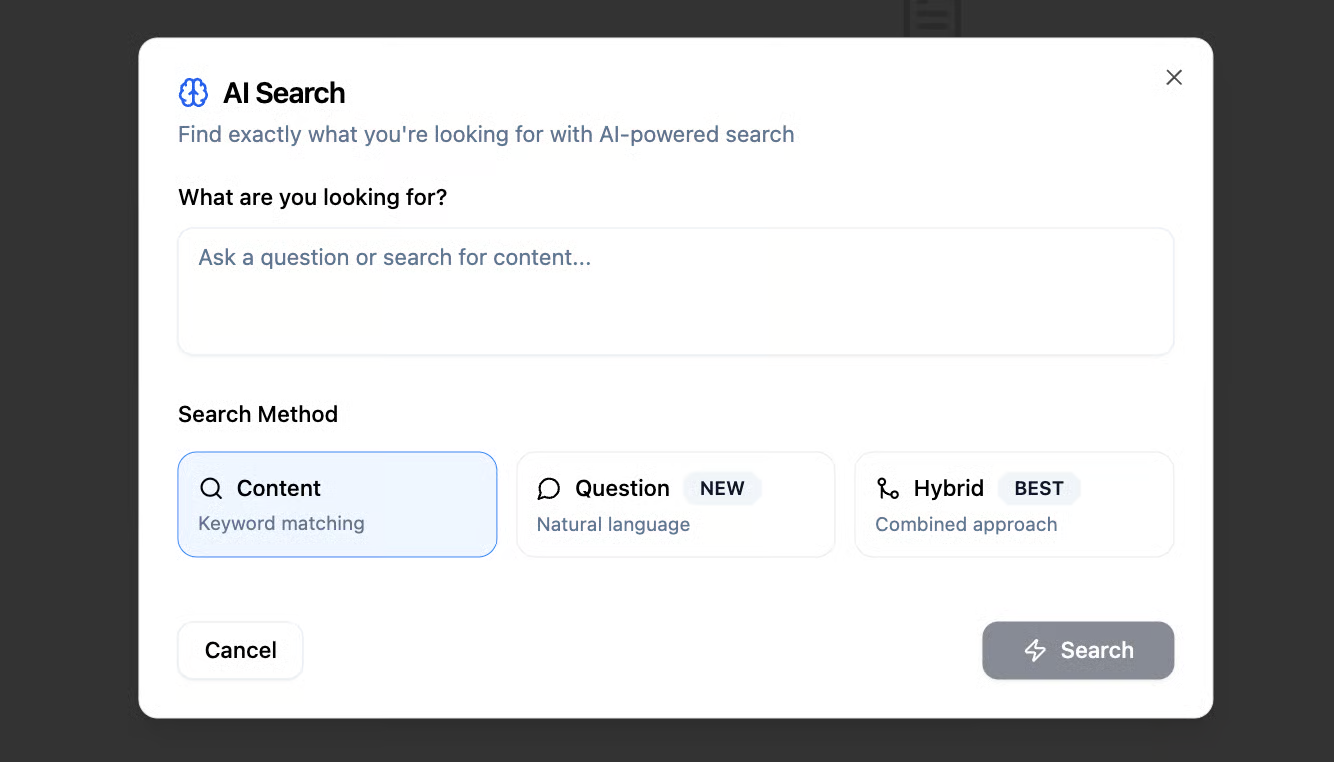
You can use AI to search for relevant information in several ways:
- Content – search based on the information content itself.
- Question – search using a question, allowing you to find the information in the KB that answers it.
- Hybrid – a combination of content-based and question-based search.