Create New KB
To create a new knowledge base, go to Manage KB. There, you can manage all your existing knowledge bases and create new ones as needed.
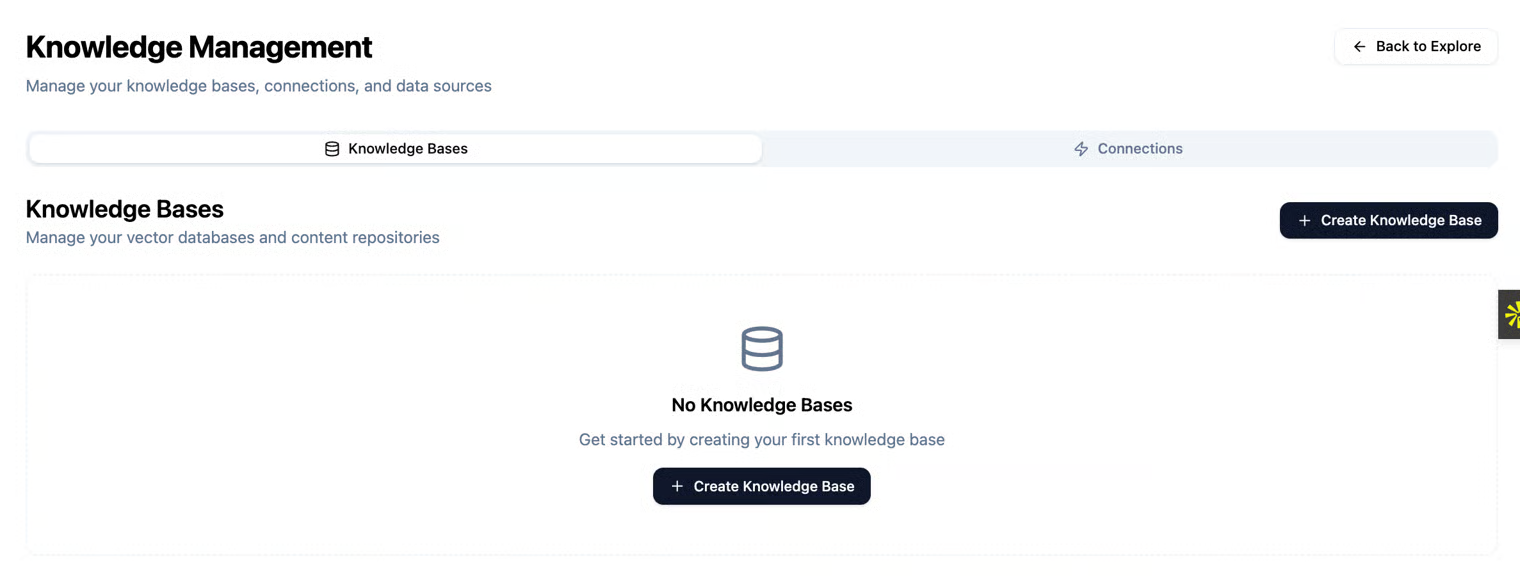
When you click the "Create New KB" button, a new page will open where you will be asked to fill in the following details:
- Name – the name of the new knowledge base you want to create.
- Description – a short description of the knowledge base, explaining its purpose or the content it contains.
Vector Database Connection
here you can choose how the knowledge base will be stored and connected to the system:
- Pinecone – a managed, professional cloud vector database service with high performance, high availability, and automatic index management. It is especially suitable if you want a ready-to-use solution with minimal maintenance.
- ChromaDB – our internal vector database, independent and open-source, which does not require connection to any external service. It provides full control, flexibility, local storage, and the ability to create multiple KBs directly within the platform.
When to choose which:
- Choose Pinecone if you are looking for a fast, stable cloud solution ready for high-scale usage without worrying about infrastructure management.
- Choose ChromaDB if you want full flexibility, customization options, or local storage, and are willing to invest a bit more in management and operation.
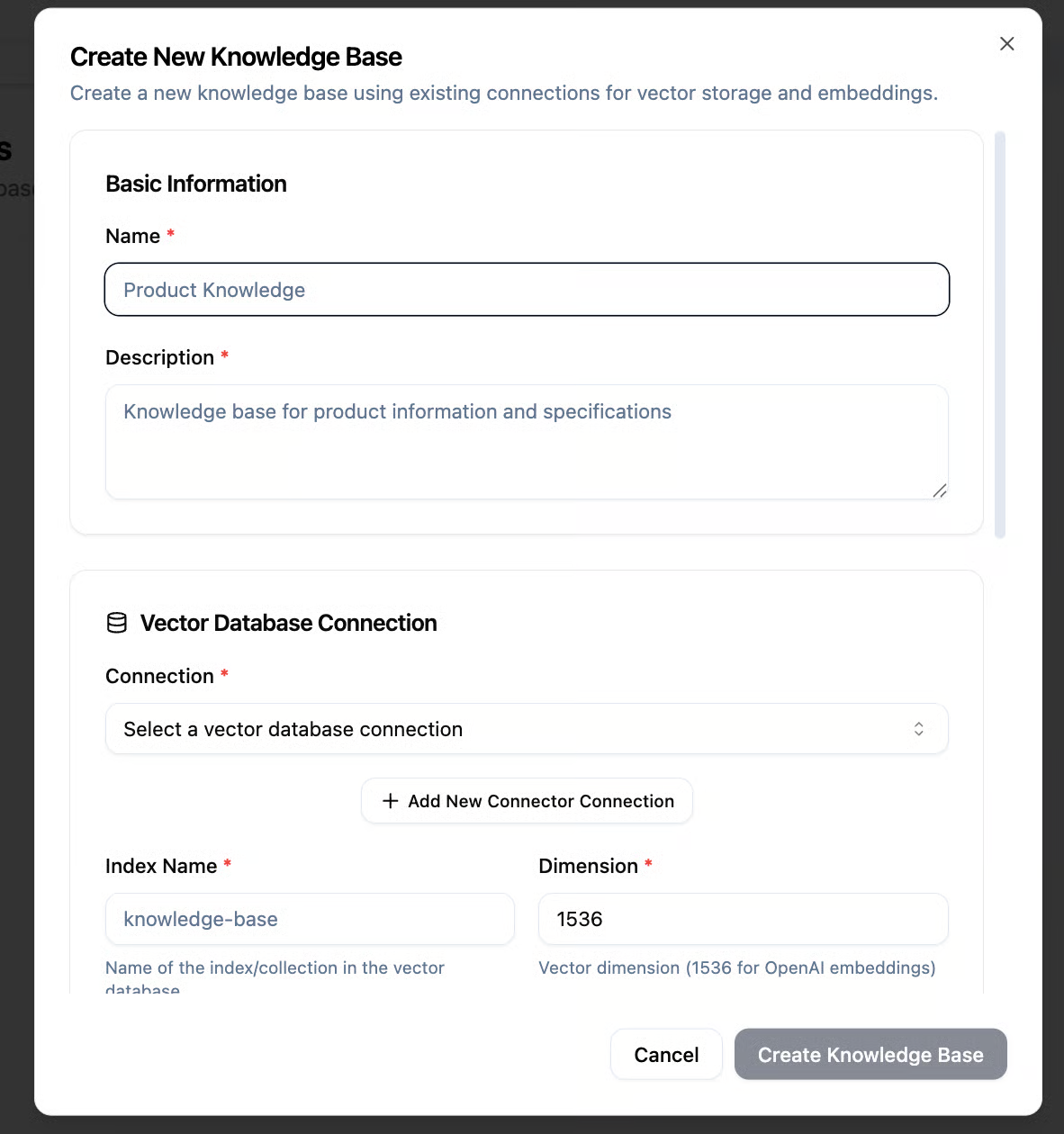
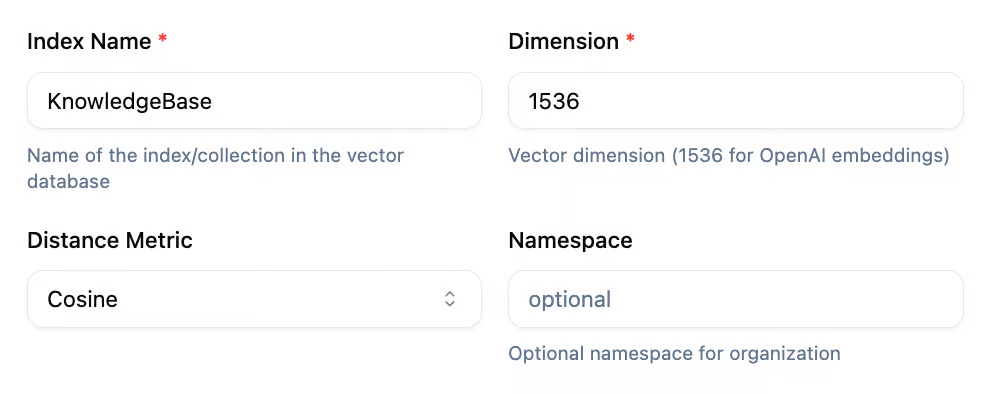
After choosing which Database Connection to use (Pinecone or ChromaDB), you will be asked to fill in the following fields to set up your new knowledge base:
- Index Name – the name of your vector index. Think of it like a folder on your computer: each index is a place where all your knowledge items are stored in an organized way. Choose a clear name that describes the content of the KB.
- Dimension – the vector dimension. This relates to how your texts are converted into numbers (vectors) by AI. Typically, we use 1536, which is the standard dimension for text embeddings with OpenAI Embeddings. There’s no need to change this if you’re unsure.
- Distance Metrics – a measure that calculates the similarity between knowledge items.
- Cosine – suitable when you want texts to be similar in meaning, regardless of their length. This is the most common choice.
- Euclidean – measures the “physical distance” between vectors. Less commonly used for text search.
- Dot Product – measures strong similarity between vectors; used for certain advanced cases. Most users can safely choose Cosine.
- Namespace (Optional) – allows you to organize your KB into internal folders or groups within the same index. For example, if you have multiple domains (Marketing, Technical Support, Product), you can create a separate namespace for each to keep the information organized. If you’re unsure, you can leave it blank and add a namespace later.
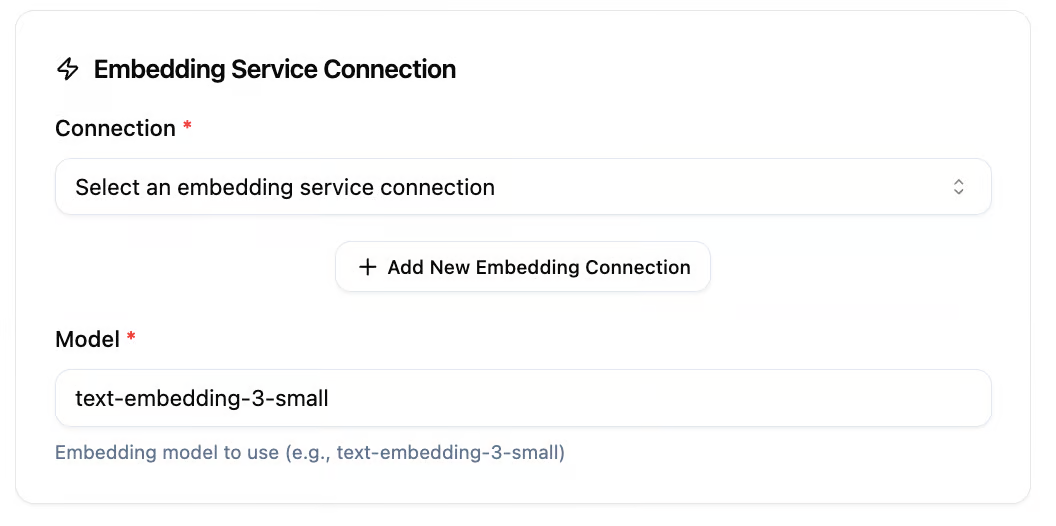
Embedding Service Connection
Here you will choose the service responsible for converting your texts into vectors (Embeddings) – that is, into numbers that the AI can understand and work with.
- Connection – here you can choose between the default service (OpenAI) or connect a new service if you have a different one. If you’re unsure, leave it as OpenAI. This is the safe and standard choice.
- Model – the embedding model that the service will use to convert the texts. The default is text-embedding-3-small. This is a fast and efficient model suitable for most cases of searching and retrieving information. If you want higher accuracy or a more advanced model, you can choose a different model from the service, but in most cases there’s no need to change the default.
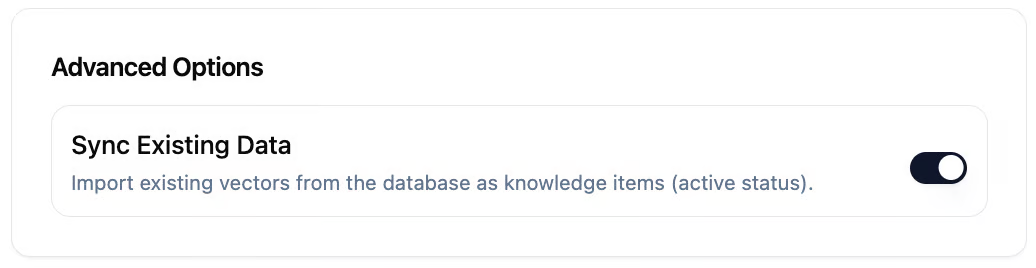
Advanced options
Here you can choose whether to import existing knowledge items from your current vector database into the new knowledge base.
If you enable the option Import existing vectors from the database as knowledge items (active status), all existing vectors will be added as active knowledge items in the new KB.
This is useful if you want to start the new knowledge base with all the information already stored in the system, without having to retype or re-upload it. Simply click the Activate button to enable this option.
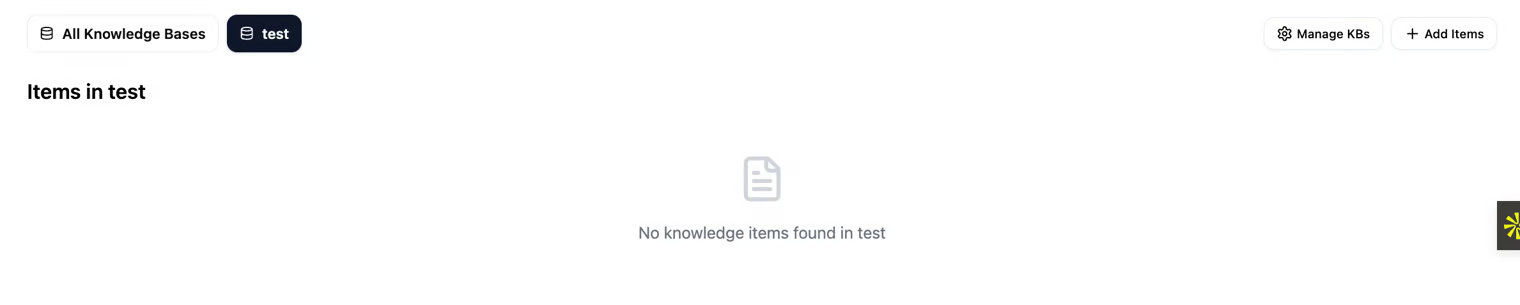
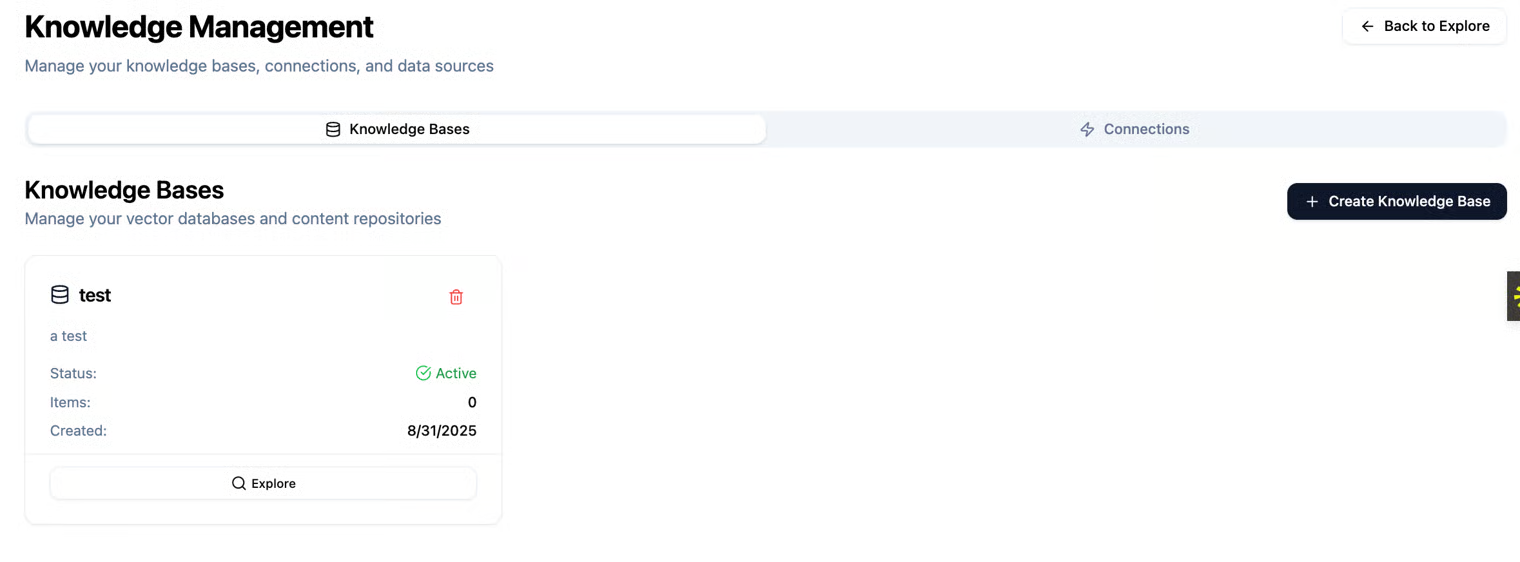
After you have finished creating your new knowledge base, you can view it in Knowledge Base Management. When you return to the Explore Knowledge Base page, you can choose which knowledge base to work with – either the new one you just created, or all existing knowledge bases in the system at once (if there are multiple).
As you can see, at the top of the Explore Knowledge Base page, there are tags that show which knowledge base you are currently working with.