Add Items
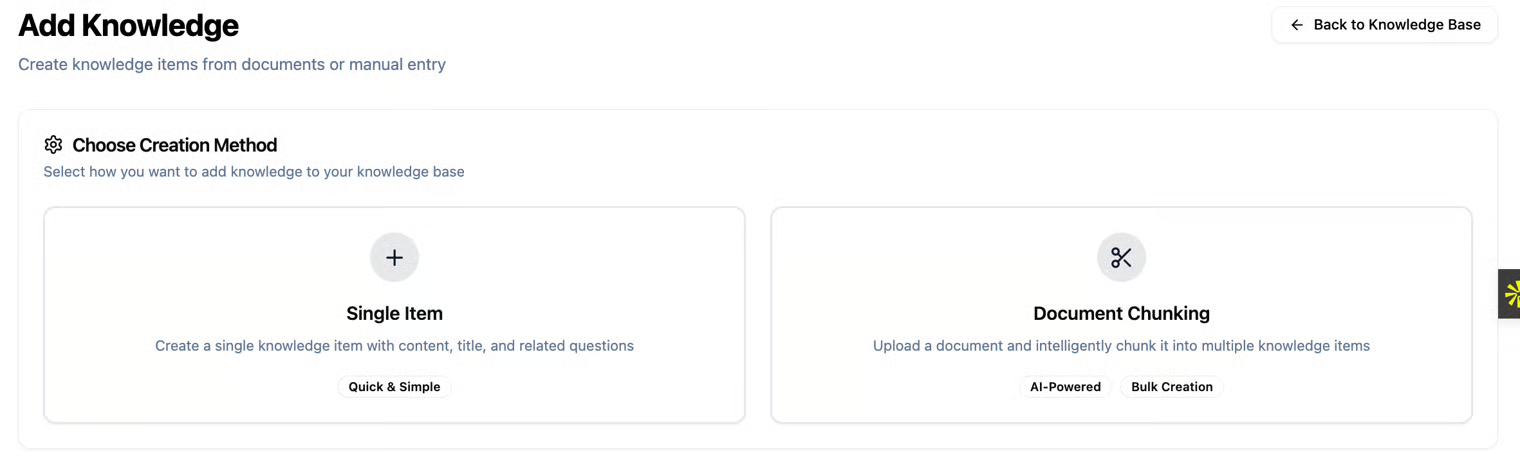
On the Explore Knowledge Base page, there is a button to create a new knowledge item. Make sure you are within the knowledge base where you want to add the item. After clicking the Add Item button, two options will appear for adding knowledge items:
Single Item – Create Single Knowledge Item
Here you can add a single knowledge item. You can enter content, an optional title, and related questions, then save.
- When to choose this: Suitable when you have a small or specific piece of information that you want to add manually, or when you want full control over the content and metadata of each item. For example: an answer to a frequently asked question, an important information paragraph, or a short explanation.
Upload Document for Chunking
Here you can upload a complete document (such as PDF, Word, or TXT), and the system will split it into "chunks" – small sections of content, each becoming an independent knowledge item.
- **When to choose this: **Suitable when you have large documents or a lot of information and want to add all the content quickly and automatically without entering each item manually. For example: manuals, articles, reports, or training books.