Login / Register
Your Organization's Account
On app.avon-ai.com, Avon AI creates your organization's account and sends an invitation email to your first admin. To give anyone else access, see Add Colleagues.
Accept the Invitation
- Open the link in the invitation email. The Accept Invitation page opens and takes you to the sign-in page.
- Sign in, or sign up, with the email address the invitation was sent to. You can use an email and password, or Continue with Google, Continue with Microsoft Account or Continue with GitHub.
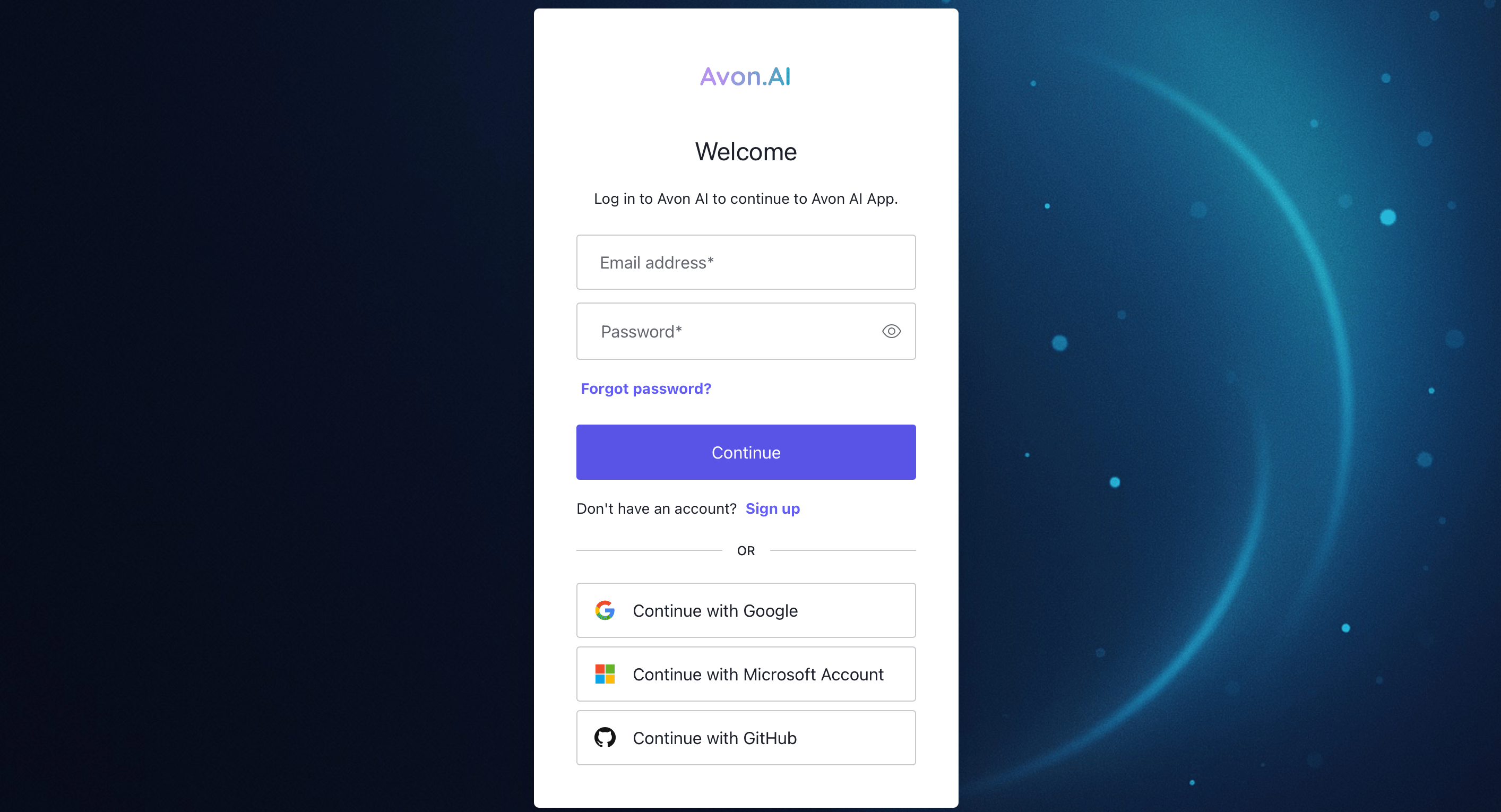
- On your first sign-in, the Setting up your workspace page appears. It can take a few minutes. You can click Skip and go to the app; some pages may stay empty until the setup finishes.
If you see You don't have access, you signed in with an account that is not part of your organization. Click Sign out and sign in with the account the invitation was sent to.
Add Colleagues
- On app.avon-ai.com: contact Avon AI support with your colleagues' email addresses, and each of them receives an invitation email. Admins then set what each person can do under Settings → Permissions.
- On an installation you run yourself: an admin adds users under Settings → Users → Add User.
AI Admin Panel
Once you log in to the platform, you’ll get to the main dashboard, called the AI Admin Panel.
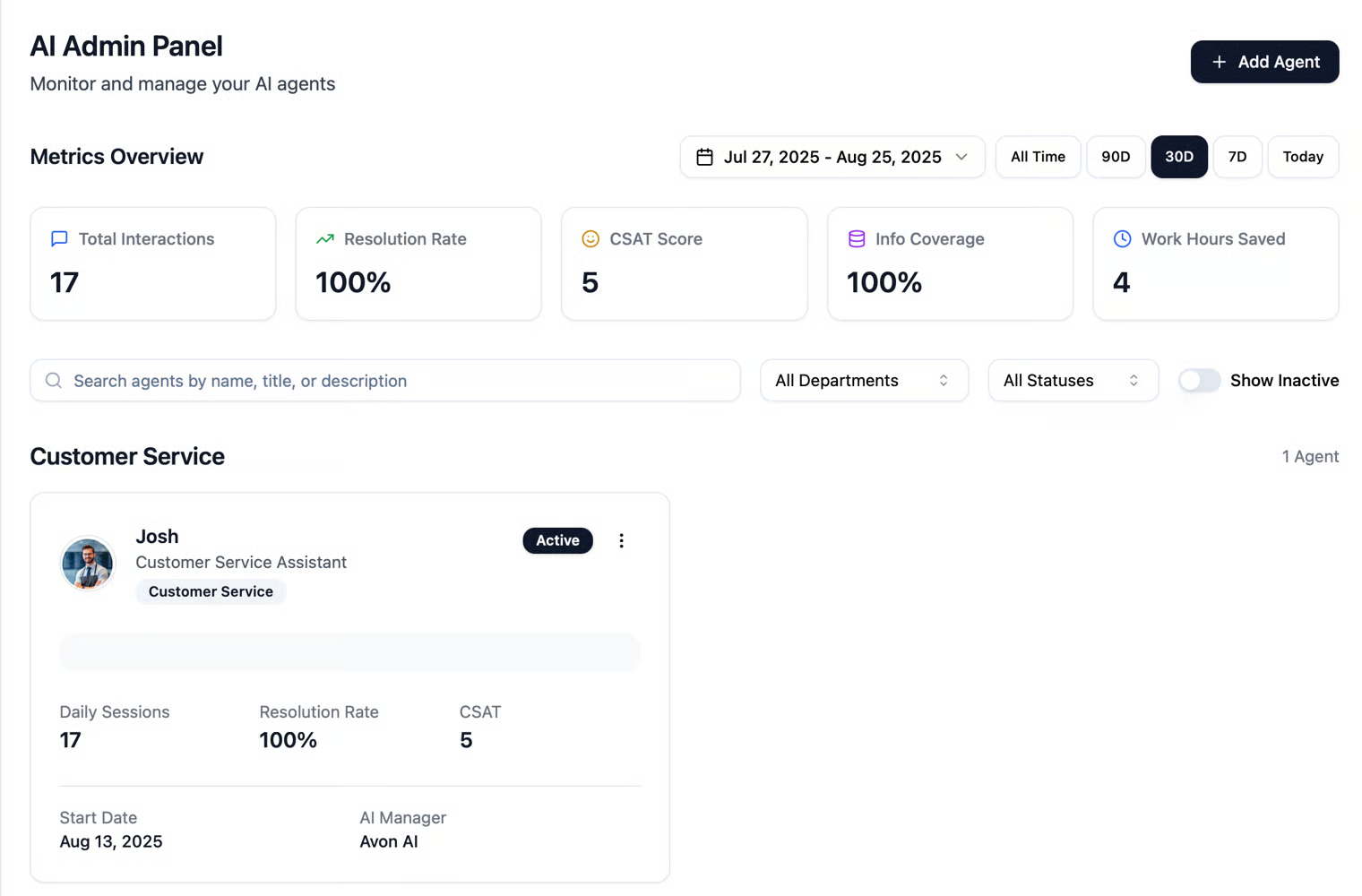
The following pages will walk you through each feature of the platform and explain how to use it step by step.