Add Document Chunking
If you chose the Document chunking Item option, you’ll need to fill in several important fields to create a new knowledge item:
Knowledge Base – Select the knowledge base where you want to save the item. It’s important to make sure the information goes into the right place, especially if you have multiple knowledge bases in the system (for example: one for technical knowledge and another for marketing knowledge).
Title – A short title that summarizes the topic of the knowledge item. The title helps you (and other users) quickly identify the content without having to read it all. For example: “Product Return Policy.”
Upload File – Here you can upload the document you’d like to turn into knowledge items. The system will automatically break the file into smaller “chunks” (sections of text), and each chunk will become a separate knowledge item within the selected knowledge base.
Supported file types usually include PDF, Word, and TXT. This option is especially useful if you already have existing documents, manuals, or reports that you want to quickly transform into searchable knowledge.
Tip: Make sure the file is clean and well-structured (for example, with clear headings and sections) to help the system create high-quality chunks that are easy to search and retrieve.
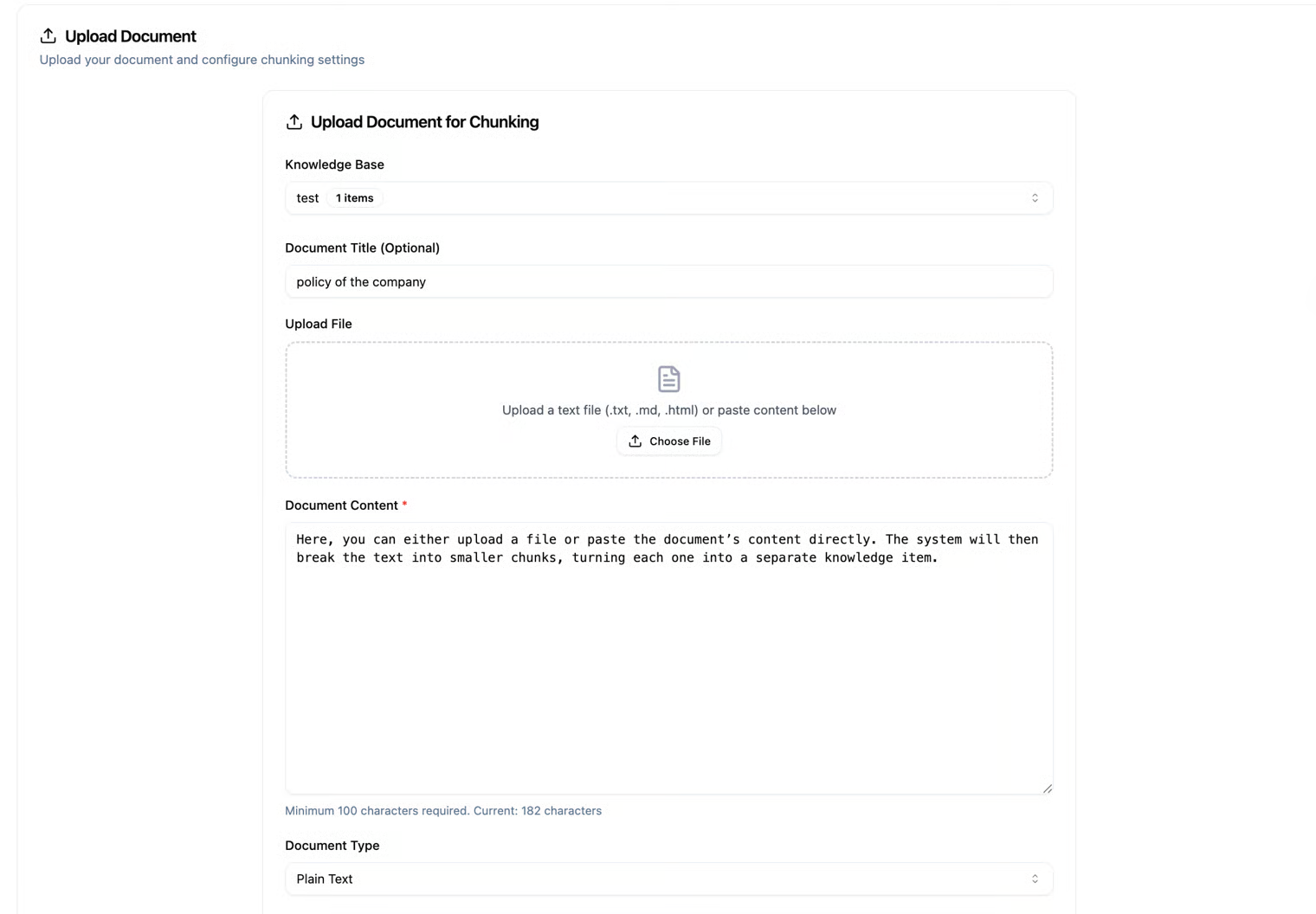
Document Type – Here you select the type of file or content you are uploading so that the system knows how to process it correctly. Common options include:
- Plain – Plain text without any special formatting. Suitable for simple information, such as TXT files.
- Markdown – Files with Markdown formatting (e.g., headings, lists, and links). The system will preserve the structure to maintain readability.
- HTML – HTML files with tags and structured content. The system will parse the document to understand the structure and turn it into clear knowledge items.
AI Enhancement Options
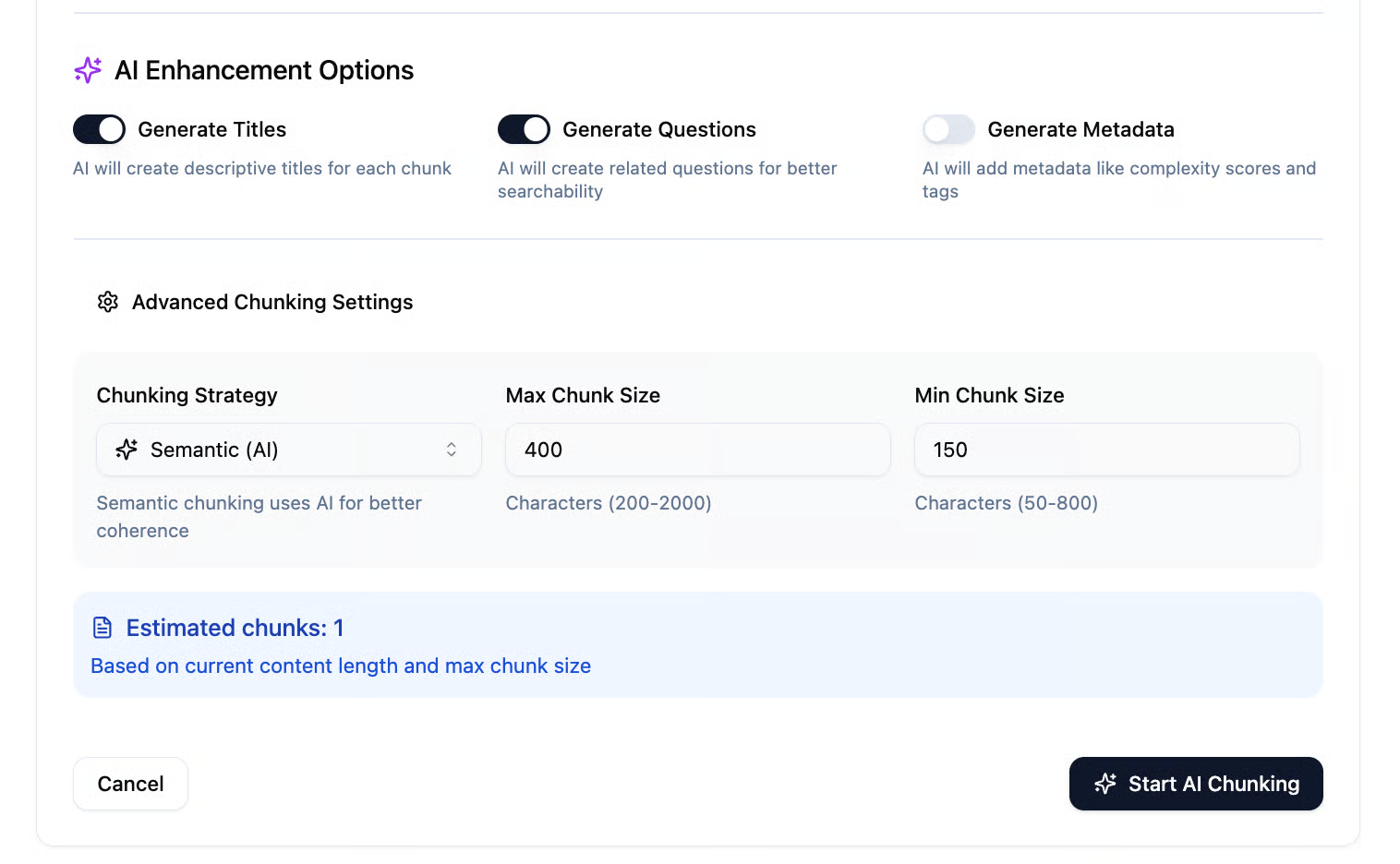
After filling in all the required fields, this section provides several options that allow the AI agent to automatically enhance the knowledge items being created:
- Generate Titles – When enabled, the AI will create descriptive titles for each chunk (small section of content). Automatic titles help quickly identify the topic of each knowledge item.
- Generate Questions – The AI will generate related questions for each chunk to improve the searchability of your knowledge base. This allows users to find information faster using natural questions.
- Generate Metadata – The AI will add metadata to each chunk, such as complexity scores, tags, and more. This helps with organization, filtering, and sorting of information within the knowledge base.
Advanced Settings
For more precise control over how the content is split into chunks, you can use the advanced settings:
-
Chunking Strategy – Choose the method for dividing the content.
- Semantic (AI) – Smart chunking by AI based on the meaning of the content, ensuring each chunk is coherent and understandable.
- Paragraph-based – Splits the content by paragraphs, with each paragraph becoming a separate chunk.
- Fixed Size – Divides content into chunks of a fixed character length.
-
Max Chunk Size – Sets the maximum number of characters per chunk (e.g., 200–2000).
-
Min Chunk Size – Sets the minimum number of characters per chunk (e.g., 50–800).
Estimated Chunks
The bottom of the page displays the estimated chunks for the document.
This number shows the expected number of chunks based on the current content length and the selected max chunk size. It helps you understand how many knowledge items will be created before saving the file.