Add Agent
Overview

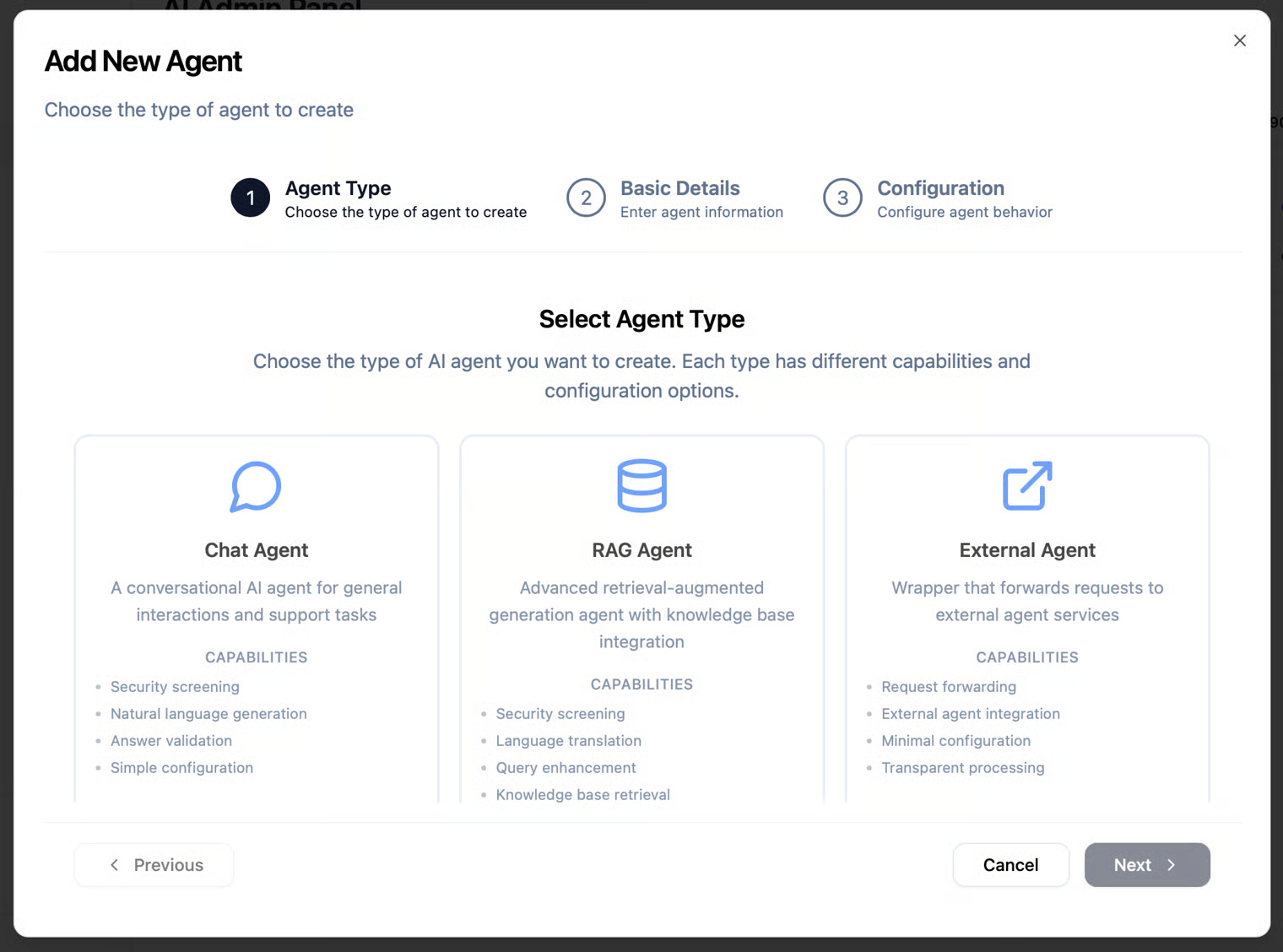
When you click the "Add Agent" button, you’ll see three agent options to choose from:
Agent Types
When adding a new agent to the platform, you can choose from three different options, depending on your needs:
Chat agent
Create a conversational agent from scratch. This option is ideal if you want to build a custom chatbot that interacts with users in real time using predefined logic, prompts, and responses.
RAG agent (Retrieval-Augmented Generation)
Build a more advanced AI agent that can search through connected knowledge sources and provide context-aware answers. Use this option if you need the agent to retrieve and generate responses based on dynamic company data or documents.
External agent
Connect an existing AI agent that your company already uses. This option allows you to integrate third-party agents or internal tools into the platform without rebuilding them from scratch.
Chat agent
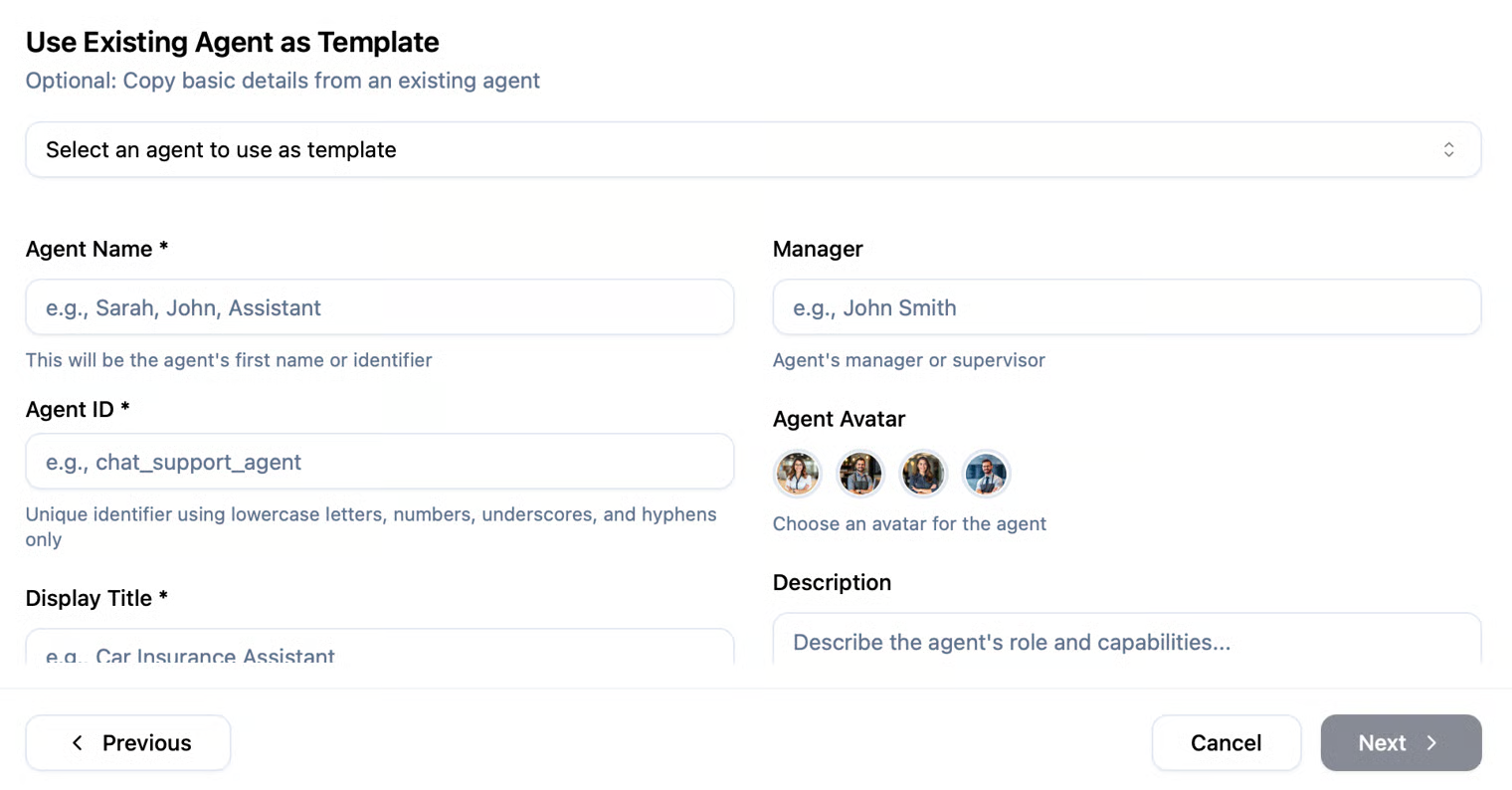
When creating a Chat Agent, you’ll need to fill in several required fields. First, provide a name for your agent, a display title (e.g., "Customer Service Agent"), and assign it to a department that fits your use case. These fields are mandatory. You can also optionally add the Agent Manager (if it’s you, enter your own name) and a brief description to help identify the agent’s role (this description can be used later to define this agent capabilities as part of a multi-agent system).
Agent ID
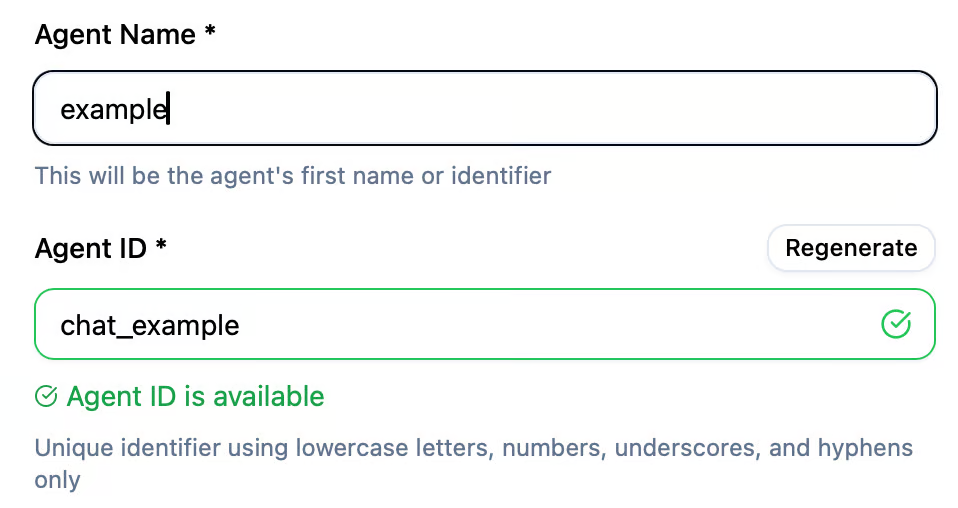
Once you enter the agent’s name, the system will automatically generate the Agent ID for you.
The Agent ID is a unique identifier assigned to each agent in the system. It allows you (or your technical team) to precisely reference a specific agent when working with integrations, automations, or internal tools.
Why is it important?
- Used to connect with the agent via API
- Helps quickly identify the agent in support tickets or data analysis
- Useful when multiple agents have similar names
- Enables setting up automated processes that target a specific agent
In most cases, users won’t need to use the Agent ID directly, but if you're working with developers or integrations, it’s an important reference point.
When creating a new agent, the configuration will be set to default settings. These settings can be changed at any time, and will be explained in detail on the next page.
RAG agent
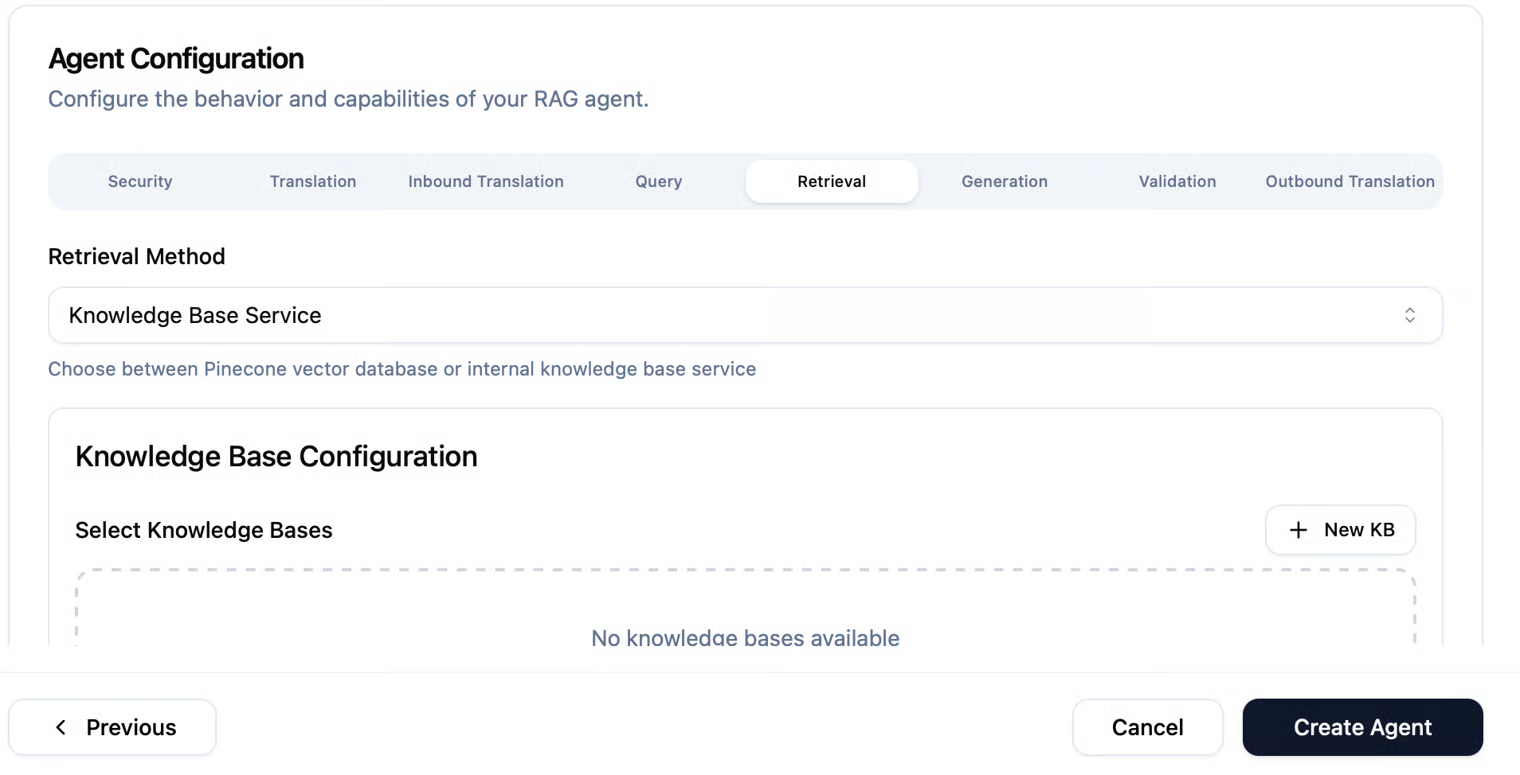
A RAG Agent can search through your company’s data or knowledge-bases (like documents or help articles) in real time and generate smart, accurate responses based on that information. What sets a RAG Agent apart from a Chat Agent is the “Retrieval” configuration step, which is available after you fill in the agent’s basic information. This allows the RAG Agent to access and search connected knowledge sources when generating responses.
Choosing a Knowledge Source- Retrieval Method
After creating your agent and entering its basic details, you’ll be asked to select the knowledge source where the agent will pull information from in order to provide accurate and context-aware responses. You can choose between two options:
- Pinecone – An external vector database service optimized for storing and retrieving information based on semantic similarity. It’s ideal if you have large-scale or distributed data and need high-performance search capabilities.
- Internal Knowledge Base (KB) – A built-in knowledge system managed directly within the platform. You can upload documents, files, or links that your agent will use to answer questions in real time.
If you don’t have an existing Knowledge Base yet, you’ll need to create one by clicking "Create New Knowledge Base." A detailed explanation of how to set up and manage your Knowledge-Base can be found in a dedicated page under "KnowledgeBase".
External agent
An External Agent is an AI agent that was not created directly within the platform, but is already running in your organization - for example, a custom-built bot or a third-party service. This option allows you to connect and manage that existing agent through the platform, without rebuilding it from scratch. It’s useful when you already have an agent in production and want to monitor, analyze, or control it using our tools.
To integrate an External Agent, click on the following page.