Overview
On the Run History page, you can view all the test runs you have performed in the system. The page is displayed as a table that provides a comprehensive overview of your run history. For each run, you can see the following fields:
- Run ID – A unique identifier for each run.
- Suite Name – The name of the Suite in which the run was executed.
- Agent – The agent on which the test run was performed.
- Date/Time – The date and time when the run was executed.
- Status – The run status (Passed/Failed).
- Pass Rate – The percentage of questions passed in the run.
- Duration – The total time it took to complete the run.
This table allows you to get a complete overview of the agent's performance, review past results, and identify issues or failure patterns.
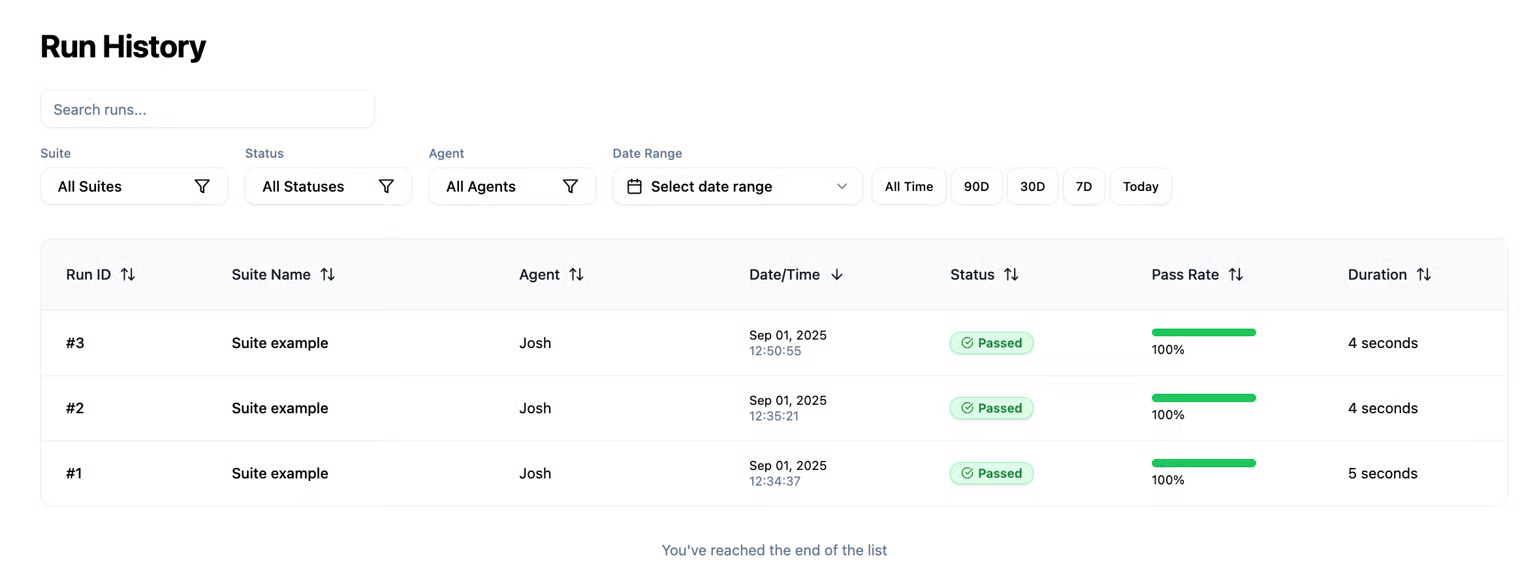
As you can see, tests can be filtered by the Suite they belong to, their status, the agent, or the dates.
For a specific test, whether it was executed individually or as part of a suite, you can view all execution details by opening the test page. For suite executions, you can also see all tests included in the suite along with the results of each test run.
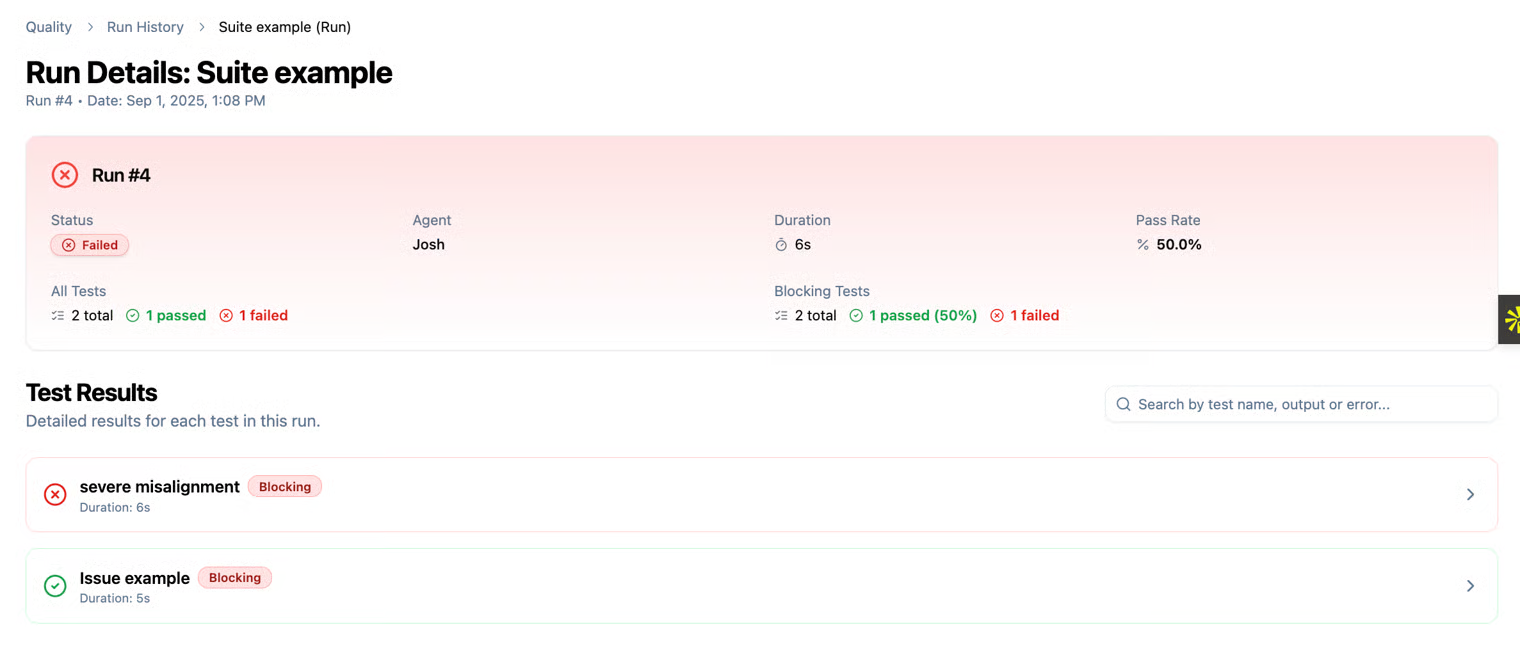
In the image above, you can see that we ran a suite containing two tests. One of the tests passed while the other failed. Since the failed test was classified as blocking, the entire suite execution was considered unsuccessful. If the same test had been classified as non-blocking, the suite execution would have succeeded, but we would still be aware that there is a minor issue in one of the tests included in the suite.
The Run History page provides a complete overview of all runs performed on your production agents. Using this page, you can track each agent’s performance over time, identify recurring issues, assess the impact of changes, and ensure that agents deliver correct responses to customers. It is a key tool for monitoring quality and maintaining stable performance in your system.