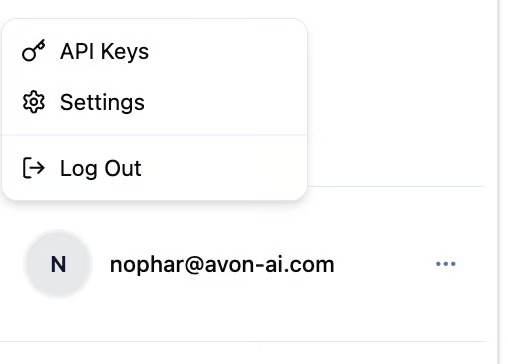
At the bottom of the sidebar, you will see the email address you are logged in with, along with a three-dot menu. Clicking the three dots will open two options, select the Settings menu.
Overview
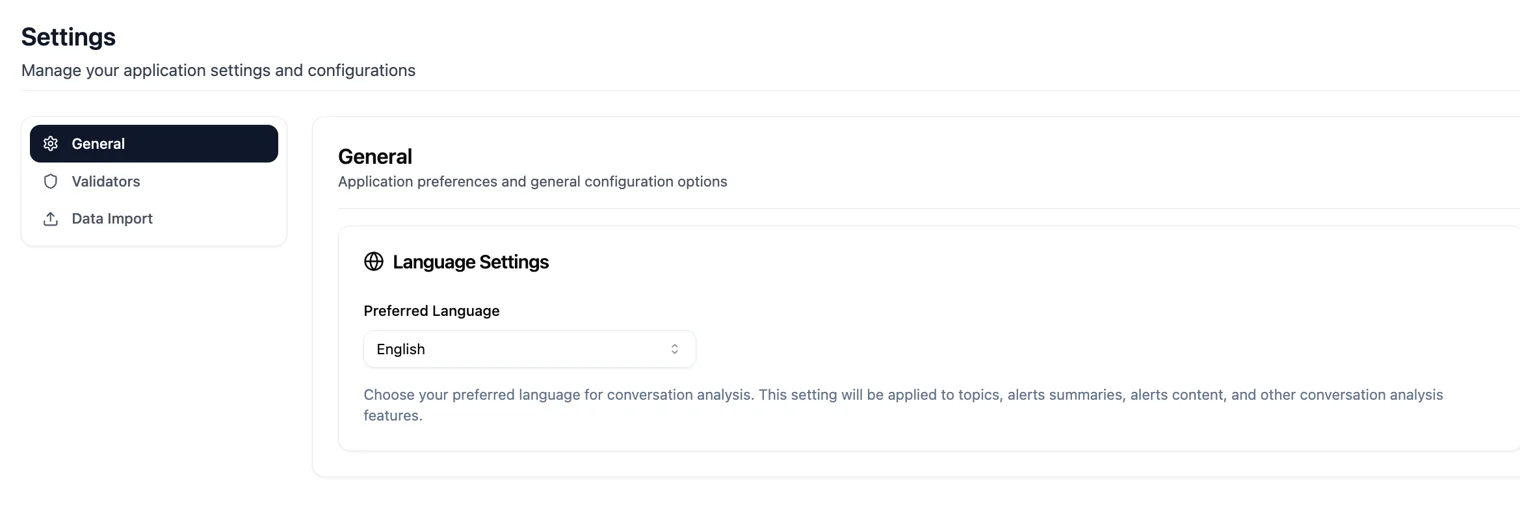
General
Under General, you can select your preferred platform language (Language Settings).
Validators
Under Validators, you can view all the available validators that are applied to the conversations you upload to the platform. Here, you can choose which validators you want to enable or disable. Each validator includes a short description of its purpose, helping you make informed and professional decisions about which ones to use.
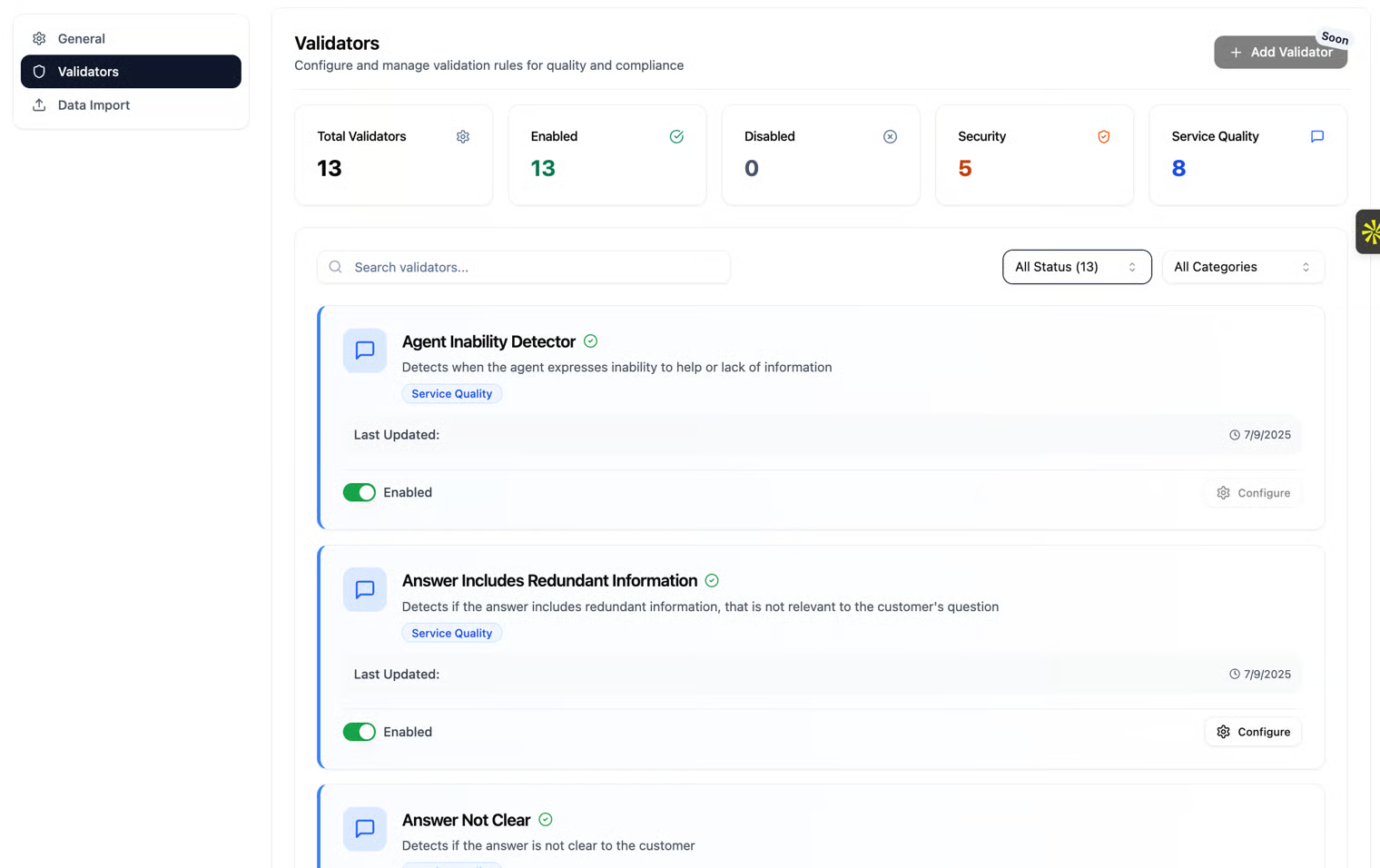
In the future, you will also be able to create and customize your own validators, enabling you to tailor the validation process to your specific needs and gain deeper insights into your agent’s conversations.
Data Import
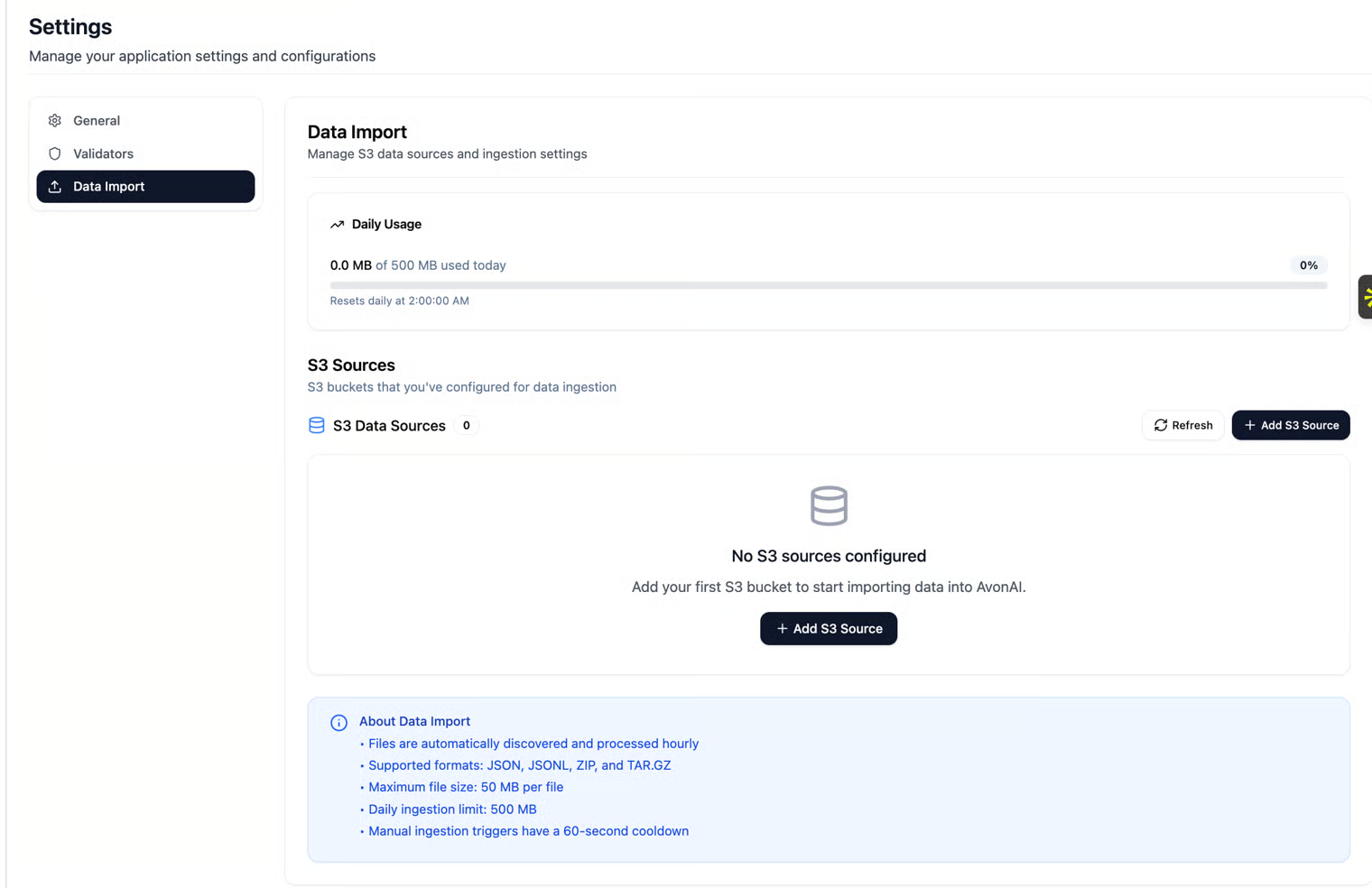
The Data Import page allows you to manage your S3 data sources and configure ingestion settings for importing data into the Avon AI platform.
Daily Usage
This section displays your daily data ingestion usage and limits:
- 0.0 MB of 500 MB used today
- Daily usage resets at 2:00 AM
- Daily ingestion limit: 500 MB
S3 Data Sources
This section lists all S3 Buckets configured for automated data ingestion into the platform.
- Number of S3 Data Sources: 0
- Add your first S3 Bucket to start importing data into Avon AI.
Available Actions:
- Refresh – Refresh the list of configured data sources
- Add S3 Source – Add a new S3 Bucket
If no sources are configured, the following message will appear: "No S3 sources configured — Add your first S3 Bucket to start importing data into Avon AI."
About Data Import
- Files are automatically discovered and processed every hour
- Supported file formats: JSON, JSONL, ZIP, TAR.GZ
- Maximum file size: 50 MB per file
- Daily ingestion limit: 500 MB
- Manual ingestion triggers have a 60-second cooldown between runs
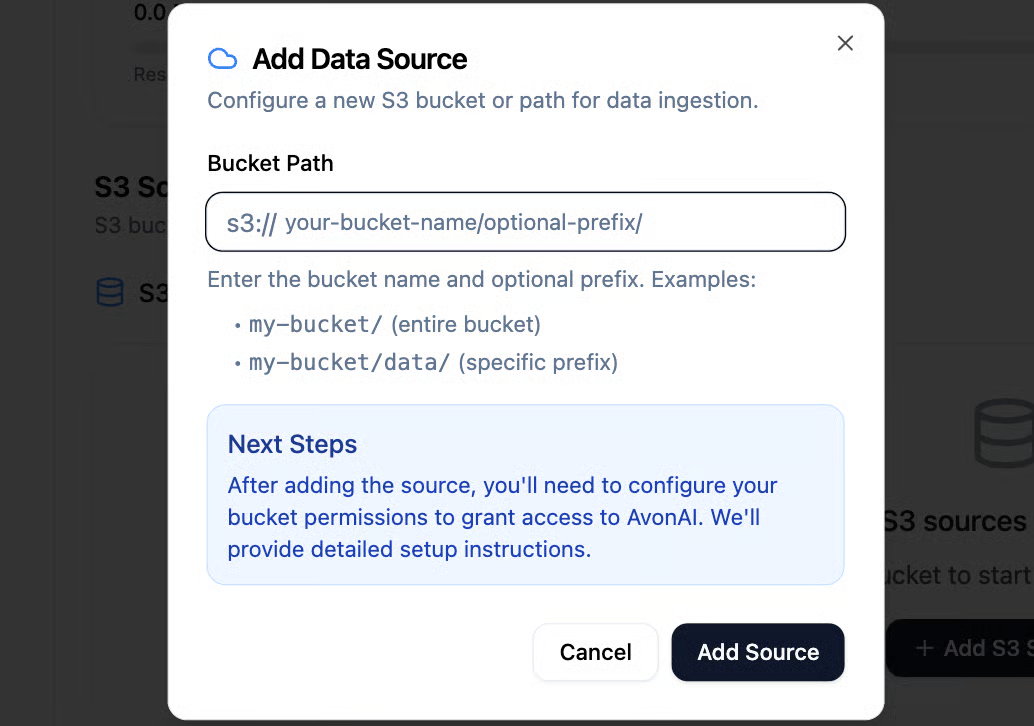
Add S3 Source
Adding a New S3 Data Source
Clicking Add Data Source will open a setup screen where you can configure a new S3 Bucket or a specific path within a bucket for data ingestion. To complete the setup, you will need to provide:
- Bucket Path
Enter the S3 bucket name and, if relevant, the folder (prefix) from which data should be ingested.
- Examples: my-bucket/ – imports data from the entire bucket my-bucket/conversations/ – imports data only from the specified prefix Make sure to include a trailing slash (/) when using a prefix.
- Permission Configuration (Required)
After adding the S3 source, you will be prompted to configure the correct permissions so Avon AI can access your bucket. You will receive step-by-step instructions, including required IAM policy and bucket access settings.
What Happens Next?
Once the S3 source is configured and permissions are set:
- Avon AI will automatically scan and ingest files from your S3 bucket on an hourly basis
- Any supported file found in the specified path will be processed and added to your Data Import logs